
Table of Contents
A Complete Walkthrough From Search to Playback
Treat the process as a short sequence. This is particularly useful on a device you have not used for the site before: first establish that the event is right, then that the chosen source opens, and finally that your display and sound controls work. It makes a later problem easier to identify.
- Choose a sport or enter one distinctive team name. If the results are too broad, compare the opponent and competition rather than adding unrelated terms.
- Open the event whose date matches your plan. Read the supplied start and check the device timezone if the displayed hour is unexpected.
- Check whether a Premium source is available now. An opening countdown means you have reached the page before that source’s selectable window.
- Select one source. Wait for its own player interface, then use play or unmute when a browser gesture is needed.
- Confirm the program and commentary. A loaded video can still be the wrong feed; compare the participants or on-screen event information.
- Test volume and fullscreen. If those work, keep the source selected and save the match address if you may switch devices.
- If playback fails, reload once, then compare another source. Record the result before changing browser or network settings.
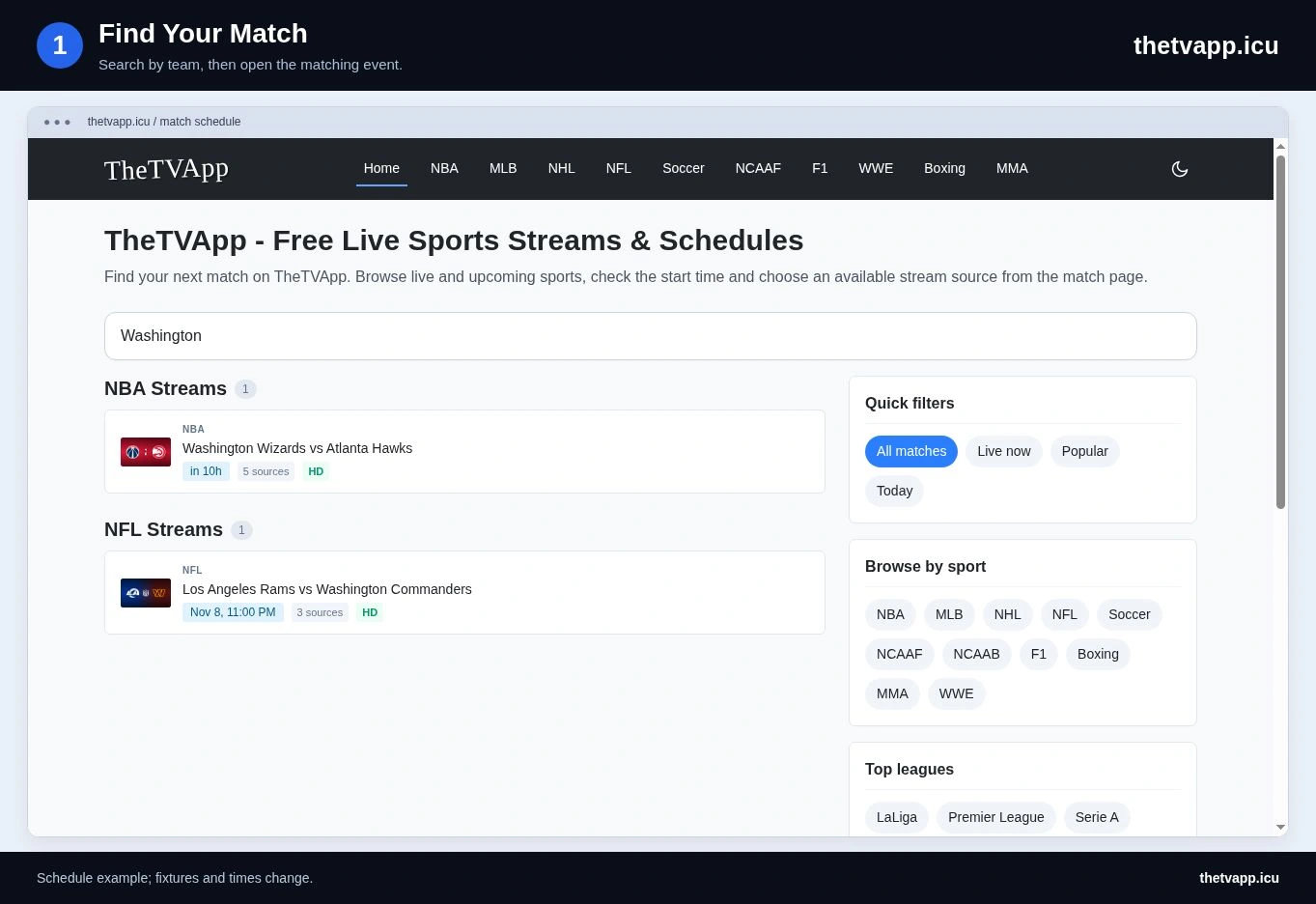
Check the Start Time
The match page shows its scheduled start and a countdown when the event is still upcoming. Times adjust to your device timezone when JavaScript is running. Check your device’s date and timezone settings if the time seems several hours out.
The Today filter uses the website timezone for its selection. Near midnight, a fixture can belong to a different calendar day in your location. Searching the full schedule is a useful cross-check. The countdown follows the listing’s start time and cannot predict a delay at the venue.
Choose a Source and Start Playback
An available Premium source is the normal starting point. If a source has an opening countdown, wait until it becomes selectable. Choose the button once and give the embedded player a moment to appear; several rapid clicks can repeatedly restart the loading process.
Tap the play control inside the video if playback does not begin automatically. Sound may also need a separate tap. Premium and VIP describe sources on this website, rather than paid memberships. VIP remains an optional manual choice because that provider may restrict embedding on some domains.
If the selected Premium source fails, choose another Premium button. Next source can move through available Premium alternatives. The page also checks for refreshed source information while it remains open. If a provider changes its stream during the match, the available choices may change.
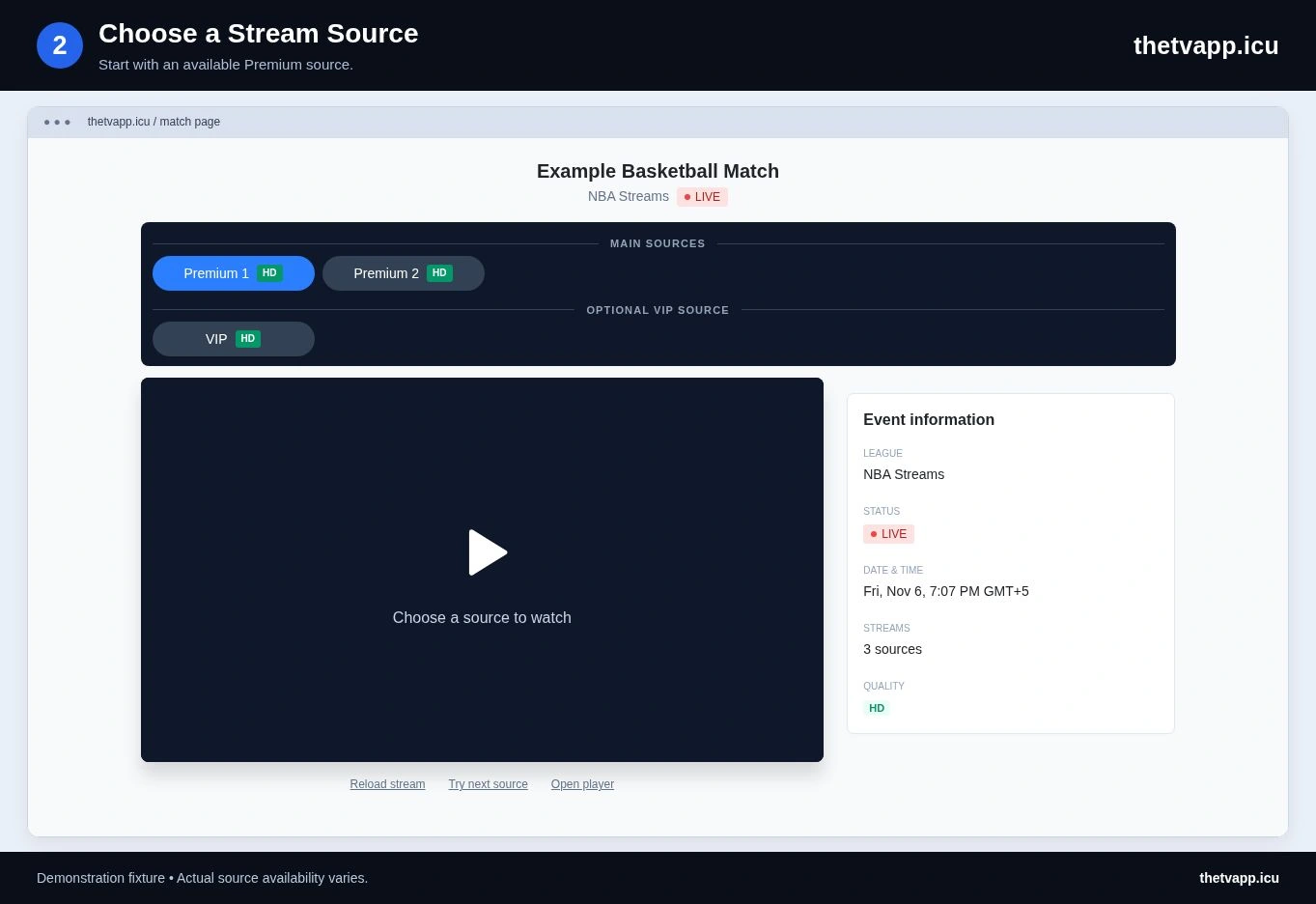
Know Which Controls Belong to the Website
The page controls select a source, reload it, move to another available Premium option and copy or share the event address. The controls inside the video are supplied by the provider. A different source can therefore look different even though you have stayed on the same match page.
This separation also explains why one player may offer a resolution menu or fullscreen button that another does not. The website cannot add a missing quality setting inside an unrelated provider’s player. Use the source with the controls that work for your device, rather than assuming every button shown elsewhere must be available here.
| Control | What It Does | What It Does Not Establish |
|---|---|---|
| Source button | Loads the selected provider for this event | That the video is on air or is a particular resolution |
| Reload stream | Restarts the current embedded source | That a provider outage or embedding rule has changed |
| Try next source | Moves through available Premium alternatives | That VIP will be selected automatically |
| Copy link | Copies the event-page address | A recording, reservation or download |
| Video fullscreen or volume | Uses the provider’s own controls | Universal compatibility across browsers |
Use the Video Controls
Volume, resolution and fullscreen belong to the embedded player. Their position and availability can vary between sources. Turn up both the player volume and the device volume when checking for sound. If the player offers resolution choices and playback buffers repeatedly, test a lower resolution.
On a phone, rotate to landscape for a wider view. Casting or picture-in-picture will only appear where the player and browser support them. See the device and browser guide before relying on a television browser or wireless display for an important event.
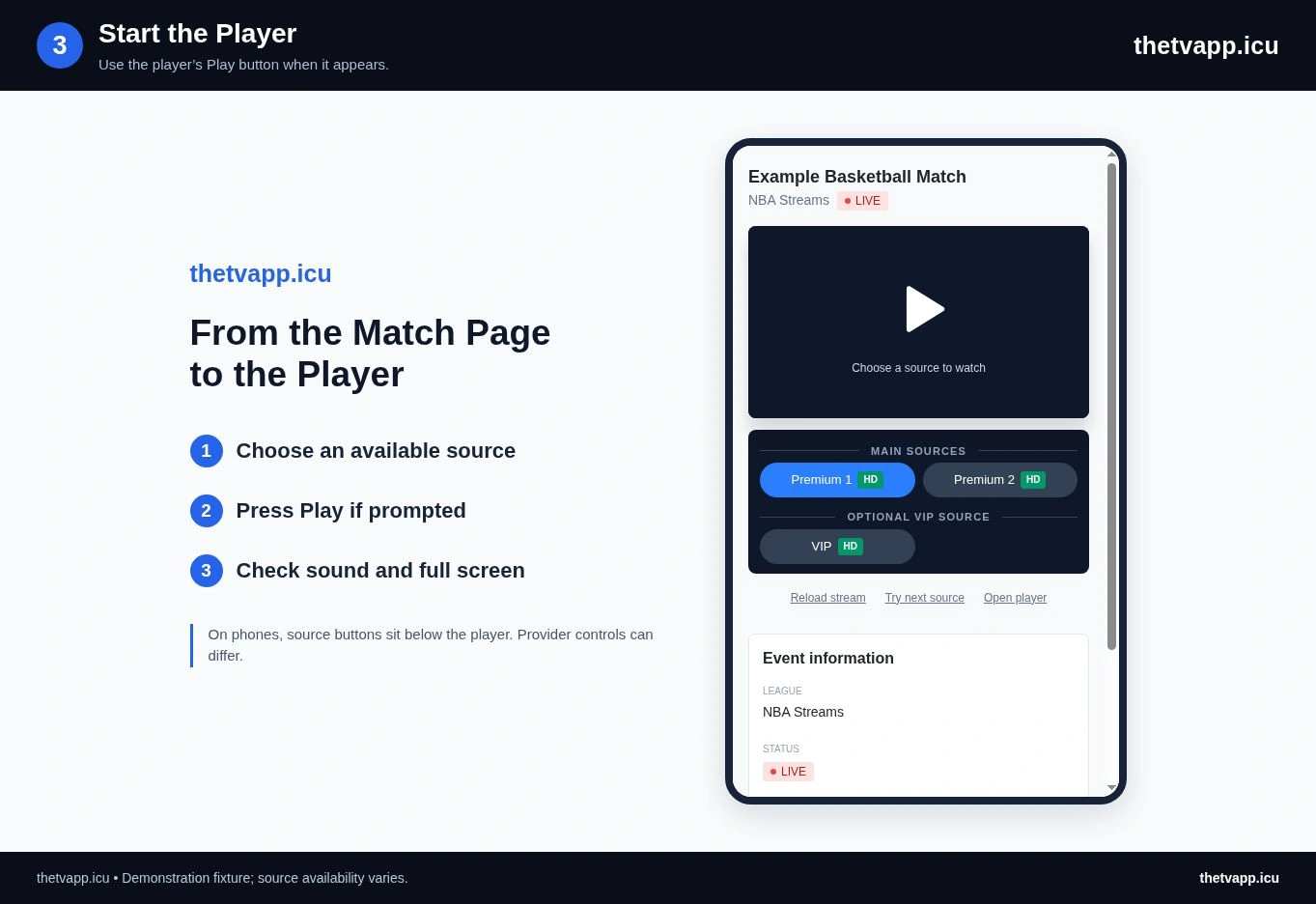
Switch Devices Without Confusing the Event
Copy the match page address before moving from a laptop to a phone or television. On the second device, check the title and start time again, then select a compatible source. A provider URL copied from inside an iframe may be temporary or depend on the page that loaded it.
Avoid judging success only by the schedule appearing on the second screen. Open the player and test both sound and moving video. If a television shows a blank player while the same source works on your computer, the device guide is the next useful reference.
When sharing with another person, remember that their local date, browser capabilities and access conditions can differ from yours. Share the event address and let them confirm the displayed time. Do not share private account credentials or access tokens from another service.
Keep the Event Address Handy
Copy link saves the match page address, which is more useful than bookmarking the embedded provider’s temporary URL. Return to the daily schedule when choosing another match. The page is a live event listing; it does not promise a replay after the event ends.
If you see a black screen, a repeated loading indicator or “refused to connect,” use the playback checklist. When reporting a problem, include the source label and the exact error so that a listing issue can be distinguished from a provider issue.
Frequently Asked Questions
Should I Keep Reloading Before the Start?
No. Check the countdown first. Repeated reloads cannot make a provider start its broadcast earlier, and they may reset a player that was still loading.
Does Changing Sources Change the Match?
The source buttons belong to the event page you opened. They offer different providers for that listing. If a source shows the wrong event, try another and report the incorrect source label through the contact page.
Do I Need Several Match Tabs Open?
Only open the events you intend to compare. Multiple video players can compete for bandwidth and make it harder to tell which tab is producing sound. Close unused players when testing one source, especially on a phone or a limited connection.
What If a Video Opens in a New Tab?
Check the destination and whether you intentionally used Open player. An external page is controlled by that provider. Return to the match page to choose another source; opening a new tab does not remove access or embedding restrictions.