
Table of Contents
- Compare the Viewing Options Before a Match
- Using an Android Phone or Tablet
- Using an iPhone or iPad
- Using a Windows, Mac or Linux Computer
- Watching on a Television
- Casting and Screen Mirroring Are Different
- A Practical Setup for Small Screens
- A Short Check Before Watching
- Frequently Asked Questions
- Sources and Further Reading
Compare the Viewing Options Before a Match
Start with the screen you already have and test the exact source you intend to use. A successful visit to the homepage establishes that the interface loads; it does not establish that a separate provider’s video format, fullscreen control or casting function works on that device.
| Viewing Option | Useful First Test | Common Limitation |
|---|---|---|
| Phone or tablet browser | Tap play, enable sound and rotate the screen | Backgrounding the browser can pause playback |
| Computer browser | Test source, tab audio and fullscreen | Extensions or provider compatibility may differ |
| Smart TV browser | Confirm the player responds to the remote | Browser engines and pointer controls vary |
| Cast from a browser | Confirm the destination and audio output | A tab cast is not the same as native player casting |
| Screen mirroring | Check both picture and sound on the TV | Notifications and other screen content may be visible |
| Cable display connection | Confirm the selected input and display output | Device adapters and provider restrictions still matter |
Using an Android Phone or Tablet
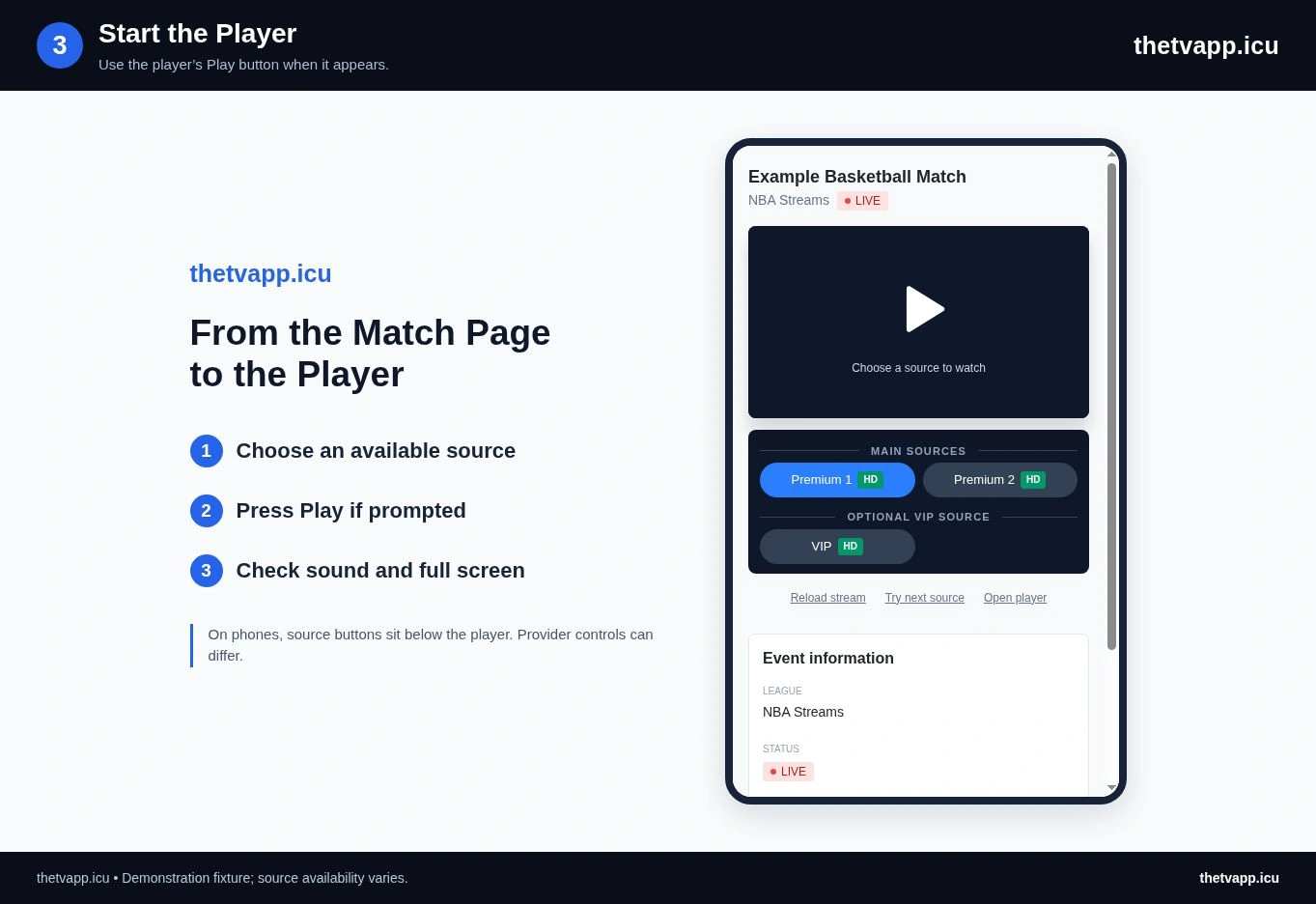
Open TheTVApp in your usual updated browser and find the event from the schedule. The website does not require an Android APK to browse listings. Choose an available source, tap play inside the video and check the sound before switching to fullscreen.
Landscape orientation gives the video more horizontal space. If rotation is locked, change that device setting first. Keep the browser tab open while testing: battery-saving behavior and background restrictions can pause playback when you move to another app. Available controls differ between source players.
Using an iPhone or iPad
Start in Safari or another browser available on your device. A tap may be required before video or sound begins. Check the embedded player’s controls rather than assuming the website can start audio automatically.
If a source opens but does not play, try another Premium option on the same event page. The player’s fullscreen and picture-in-picture support can differ. Test the exact source you intend to use before the event, since a working schedule page alone does not confirm video compatibility.
Using a Windows, Mac or Linux Computer
A current desktop browser gives you a larger view of the schedule and source buttons. Search for a team, open the match and keep the source controls within reach while you check the broadcast. If sound is missing, check both the player and the browser tab mute setting.
When video repeatedly buffers, stop other large downloads and compare another source. If only one browser fails, inspect its specific error message or try a second updated browser. The troubleshooting guide gives a useful order for these checks so you can change one thing at a time.
Watching on a Television
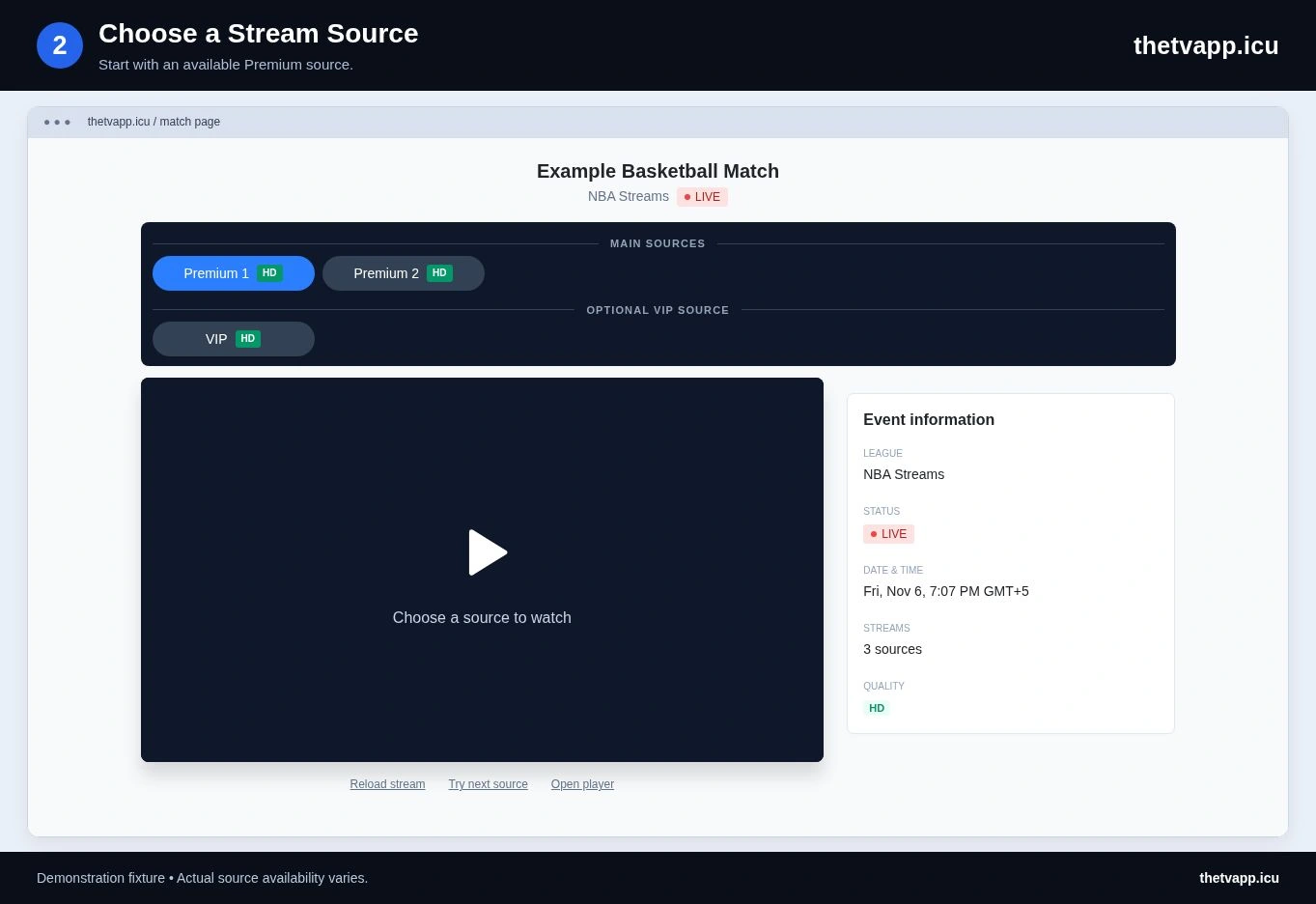
A smart TV browser may load the website but struggle with a provider’s video format or controls. Begin by checking whether the same source plays on your phone or computer. Use the TV browser’s pointer carefully when selecting small controls inside the embedded player.
Casting, AirPlay and screen mirroring depend on your devices, network and the provider. Use a cast or sharing control only when it is available; this site does not add a universal casting feature to every source. A compatible cable connection from a computer is another display option, subject to the equipment and video provider.
If you plan to use wireless display, test picture and sound together before the event. The phone and television may need to be on the same network. Screen mirroring can also show notifications, so review your device’s notification settings before sharing your screen.
Casting and Screen Mirroring Are Different
Casting may send a tab or supported video to another display. Screen mirroring shows what is on the source device’s screen. The available method depends on your equipment and the player; a cast icon cannot be assumed to appear in every embedded video.
For Chrome, use the official instructions for casting to a TV and check that your receiving device is compatible. For an iPhone or iPad, follow Apple’s AirPlay and mirroring instructions. These references describe the device functions, not a guarantee that every source in the directory supports them.
Before the event, test audio output as well as picture. A successful connection can still leave sound on the phone, laptop or another paired device. When mirroring, consider whether notifications or other private screen content may become visible on the television.
A Practical Setup for Small Screens
Choose the match in the normal page layout before entering fullscreen. Check the source name so that you know which option worked. If playback later stops, exit fullscreen to return to the page controls instead of repeatedly tapping inside a stalled video.
Long events can consume battery and mobile data. The amount depends on the video bitrate, resolution and time spent watching; a fixed per-match data promise would be misleading. Use your device’s data-usage tools if you need to monitor consumption, and keep charging arrangements practical for the place you are watching.
Text links and the table of contents remain usable without opening several players. If you are reading help while watching, it may be easier to keep the guide on a second screen and leave one video source running. The complete watching sequence explains the controls in the order you will need them.
A Short Check Before Watching
Confirm your device timezone, update the browser when needed and test the source’s play, volume and fullscreen controls. Keep the watching guide handy if you are using a new device. You can save the match address with Copy link and reopen it on another screen.
There is no claim that every source works on every device. If one provider is incompatible, test a Premium alternative. For an event that has not started yet, use the countdown as your first check instead of treating an empty player as a device fault.
Frequently Asked Questions
Is There a Required TheTVApp Installer?
No installer is needed to use this website. You can browse the schedule and open the player page directly in a browser.
Will the Same Source Always Work on Two Devices?
Not necessarily. Browser capabilities, autoplay rules and provider restrictions can differ. Test the source on the device you will actually use.
Does Fullscreen Improve Video Quality?
Fullscreen changes how much of the display the player uses. It does not by itself increase the detail supplied by the provider. Check for an available quality setting inside the player if the picture looks soft, and balance resolution against connection stability.
Can I Keep Watching With the Screen Locked?
That depends on the device, browser and player. Some environments pause media when the browser moves into the background or the screen locks. Test the intended behavior before relying on it; the website does not provide a universal background-playback mode.