
Table of Contents
- Check the Listing Before Changing Settings
- Use the Symptom to Choose the Next Check
- Why Does VIP Say Refused to Connect?
- What If the Player Is Black or Keeps Loading?
- What Causes Buffering or Missing Sound?
- What Does a Successful Connection Test Prove?
- When Should I Clear Site Data or Change a Browser Setting?
- What Information Helps With a Report?
- Frequently Asked Questions
- Sources and Further Reading
Check the Listing Before Changing Settings
Start with the event title, scheduled time and countdown. A page can be published before video is available. A LIVE badge is calculated from the schedule, so it does not prove the selected provider is transmitting. If the match has not started, wait until the opening time shown by the source.
Confirm that you selected the correct fixture. Teams can meet on consecutive days, and some sports have separate qualifying, preliminary and main-event listings. Return to today’s schedule or search for both participants if the title is ambiguous.
Use the Symptom to Choose the Next Check
A useful diagnosis starts with what actually failed. The schedule, event page, embedded player and video transmission are different stages. If the schedule works but one player does not, begin with that source. If ordinary websites also fail, investigate your connection before cycling through every event.
Keep a brief note of each test. “Premium 1 refused the connection; Premium 2 played” is more informative than “the website is broken.” Change one variable at a time, then stop once you have a stable option.
| Symptom | What to Check First | Next Action |
|---|---|---|
| No matching event | Search text, competition and date | Try a shorter team name and the wider schedule |
| Source countdown | Scheduled start and source opening | Wait for the available window |
| Refused to connect | The selected provider | Choose another Premium source |
| Play button but no video | Browser playback gesture | Tap play once, then allow the player to load |
| Video with no sound | Mute state and audio output | Check player, tab, device and Bluetooth output |
| Buffering after playback starts | Source and connection stability | Compare another source and an available lower quality |
| Wrong program | Event identity and source label | Try an alternative and report that specific link |
| All video fails on one device | Browser compatibility | Test an updated browser or a second device |
Why Does VIP Say Refused to Connect?
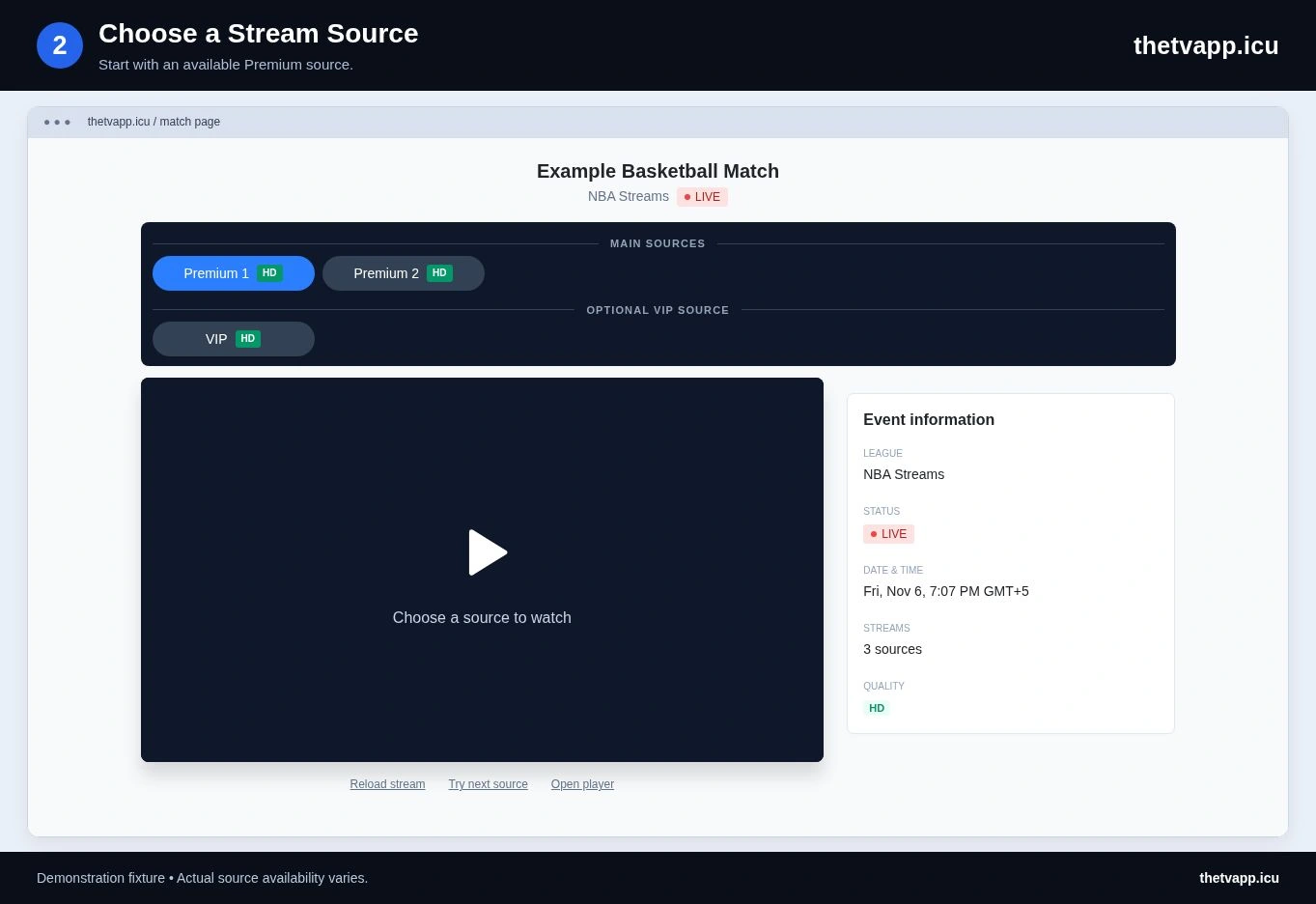
An embedded player can reject the website that is trying to display it. Browsers enforce a provider’s embedding rules, which can produce “refused to connect” even when your internet connection is working. This differs from a video that loads and then buffers.
Select a Premium source on the same match page. VIP is a manual option, and the player does not need it to use the available Premium links. If a Premium source plays, you have identified a source-specific problem. Refreshing VIP over and over will not remove an embedding restriction.
What If the Player Is Black or Keeps Loading?
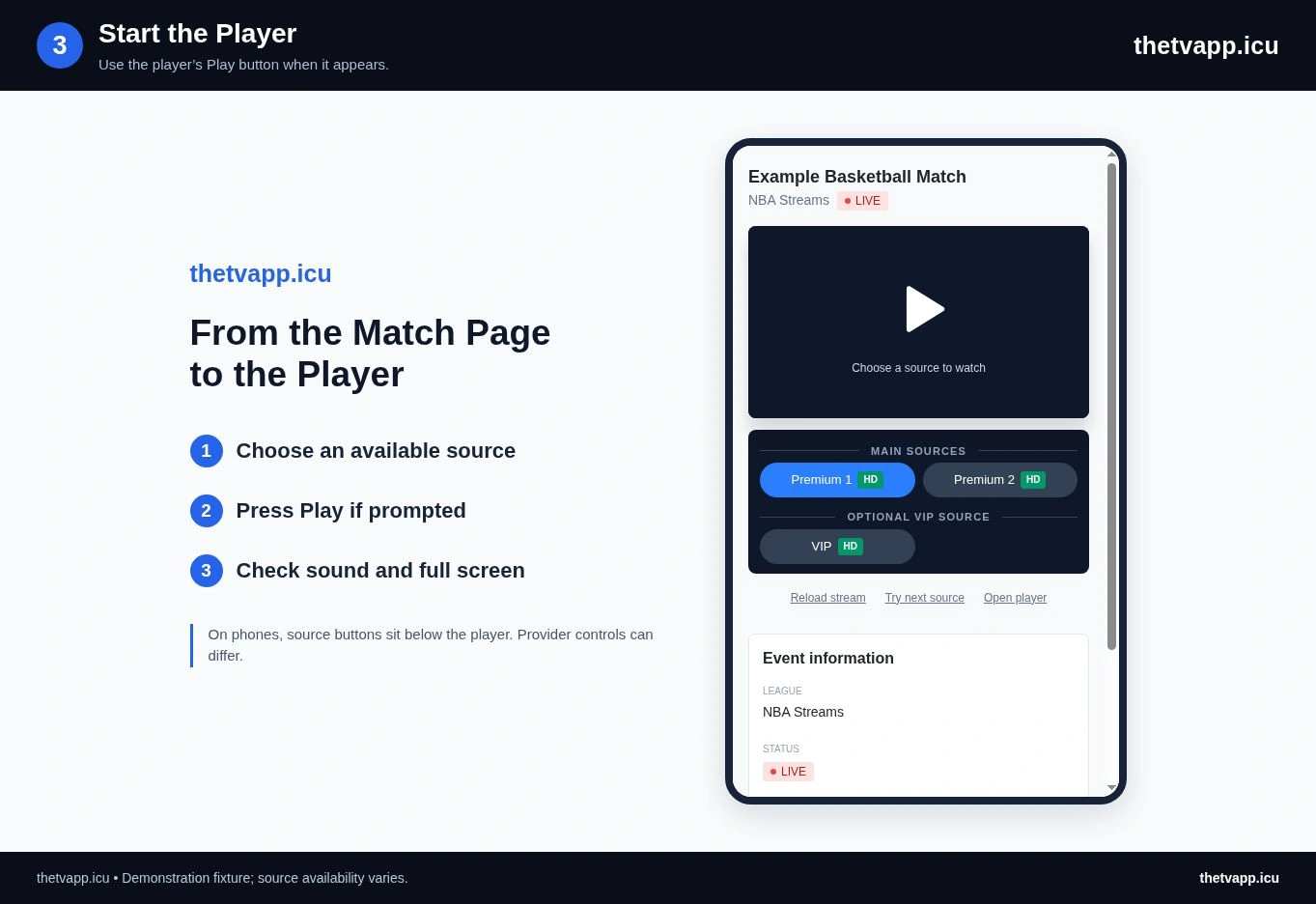
Give a newly selected source a moment to load, then tap its play button if one is visible. Reload that source once. If the same symptom returns, choose another Premium source. A working alternative is usually a better next step than changing several browser settings at once.
If every available source fails, open another event that is currently scheduled to be live. This helps distinguish one unavailable broadcast from a wider playback problem. A successful page request is not the same as a working video: the provider can return a normal webpage containing an offline message.
Check for a browser update and try a second browser that you already trust. Extensions and strict content settings can interfere with embedded video. Review any block message for the specific player; do not disable browser security globally or install an unknown extension just to make a stream load.
What Causes Buffering or Missing Sound?
Buffering after video begins can come from a busy connection or the provider. Pause large downloads, move closer to your Wi-Fi router if needed and test another Premium source. If the player offers a quality menu, a lower resolution may be more stable on a limited connection.
For silent video, check the player mute button, the browser tab and your device volume. Bluetooth audio may still be routed to another device. On a phone, tap play or unmute directly; browsers often limit autoplay with sound.
If the same source works on a computer but fails on a television, consult the device guide. The schedule and the third-party video have different compatibility requirements.
What Does a Successful Connection Test Prove?
A webpage can return a normal response while displaying a message that the stream is offline. Conversely, a server-side check can fail even though a visitor’s browser can reach the player. These observations are useful clues, but neither is a complete playback test.
That is why the current player treats ordinary availability observations as advisory. A source can still be selected when a check was inconclusive. An explicit embedding refusal is different: the browser enforces the provider’s permission rules. The browser documentation on embedding permissions explains that mechanism.
You do not need to diagnose HTTP headers to watch a game. The practical distinction is whether the source loads, whether it starts actual video and whether the video remains stable. Report the visible outcome rather than assuming one technical status proves the whole event is available.
When Should I Clear Site Data or Change a Browser Setting?
Clearing all browser data is a poor first test because it can remove useful preferences and sign you out of unrelated services. Begin with a single source reload, then an alternative source. If the same problem is isolated to one browser, review that browser’s error message and update status.
If you decide to remove site data, use the browser’s controls for the relevant website and understand what will be removed. There is no need to expose passwords, disable certificate checks or install an unknown “video repair” program to follow this guide.
Autoplay limits can make a healthy player wait for a click. They are different from a network failure. Use the play and unmute buttons first; the media autoplay guide describes why browsers may require a user action.
What Information Helps With a Report?
Send the site contact the match page URL, source label, approximate time, browser and device. Include the exact error text and say whether another source worked. Do not send passwords, private account information or unrelated browser history.
For general steps, return to How to Watch on TheTVApp. If no current source is available for the event, check again later. The directory can refresh links, but it cannot guarantee that an external provider will remain online.
Frequently Asked Questions
Can a Different Source Have Different Commentary?
Yes. Providers may carry different versions of a broadcast. Check the audio after switching; a source label does not guarantee a particular language or commentary team.
Why Does the Stream Stop When I Switch Apps?
Mobile browsers may pause media when a tab moves into the background or the device locks. Return to the tab and restart playback. Background playback and picture-in-picture depend on the player and device.
Why Does One Browser Work While Another Fails?
Browsers can differ in media support, autoplay behavior, stored site settings and extensions. Test the same event and source before comparing results. A different provider on the second browser would change two variables and make the comparison less useful.
Should I Use a VPN to Fix an Error?
A VPN is not a universal playback fix and does not change a provider’s embedding permissions or your entitlement to a broadcast. Check timing, sources and normal connectivity first. Follow the provider’s access conditions for your location.